Custom email domain
By default, emails are sent from a generic address.
You can configure your own domain to send notifications
from a custom address (e.g. reservations@your-hotel.com).
Access: Owners only.
Access
Settings > Email domain in the sidebar.
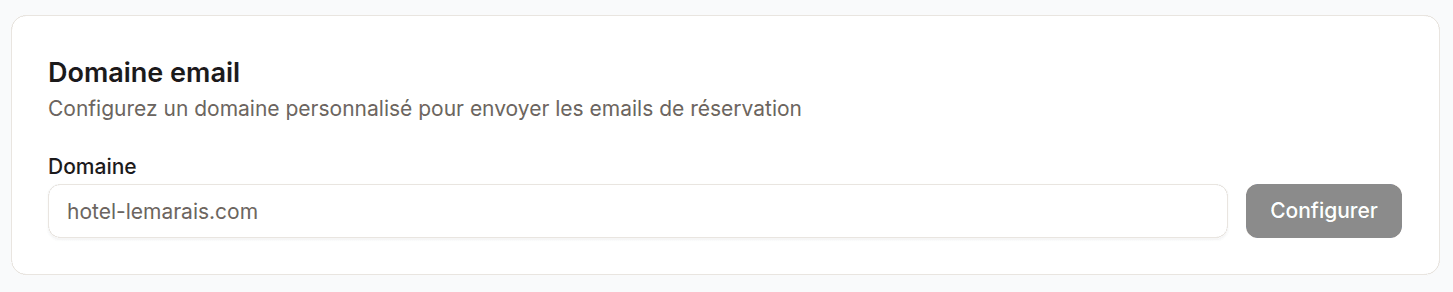
On this page:
- Domain name input field
- Table of DNS records to configure
- Verification status of each record
- Verify / Re-verify button
Benefits
- Professionalism: guests receive emails from
contact@your-hotel.cominstead of a generic address - Trust: custom emails inspire more confidence
- Deliverability: a verified domain improves the delivery rate
Setup procedure
Step 1: Add your domain
- Enter your domain name in the field provided (e.g.
your-hotel.com) - Click Add domain
Step 2: Configure the DNS records
The system provides DNS records to add at your domain host:
| Type | Name | Value | Purpose |
|---|---|---|---|
| TXT | _dmarc.your-hotel.com | v=DMARC1; ... | DMARC policy |
| CNAME | em1234.your-hotel.com | u1234.wl.sendgrid.net | Verification |
| CNAME | s1._domainkey.your-hotel.com | s1.domainkey.u1234... | DKIM signature |
| CNAME | s2._domainkey.your-hotel.com | s2.domainkey.u1234... | DKIM signature |
Tip: If you are not sure how to edit your domain’s DNS, check your host’s documentation or contact your webmaster.
Step 3: Verify the domain
- After adding the DNS records, click Verify
- Verification can take a few minutes to a few hours
Verification statuses:
| Status | Description |
|---|---|
| Pending | Verification in progress |
| Verified | Domain correctly configured |
| Failed | One or more DNS records are missing or incorrect |
Step 4: Configure the sending address
Once the domain is verified, set the sending email address:
reservations@your-hotel.comcontact@your-hotel.com- or any other prefix of your choice
Troubleshooting
If verification fails, use the Re-verify button to re-run the check after correcting the DNS records.
The system indicates precisely which record is missing or incorrect.
Last updated on