Booking Profiles
Booking profiles tailor how rooms and services are presented in the booking funnel to each type of traveller, without changing prices or availability.
Access: Owners and managers.
How it works
When a guest searches, the funnel infers a profile from the search (party size, number of rooms, dates). If a matching profile is enabled, the promoted rooms and services move to the top of the list and can carry a custom name and description.
Prices, availability and your catalog never change: a profile only affects display order and labels. The custom name does follow the guest all the way through, appearing in their summary, their confirmation email and the booking sent to the PMS, so a guest is never confirmed under a name they were not shown. Only the label travels, the room and service booked stay the catalog ones.
Access
Click Profiles in the sidebar, then select a property.
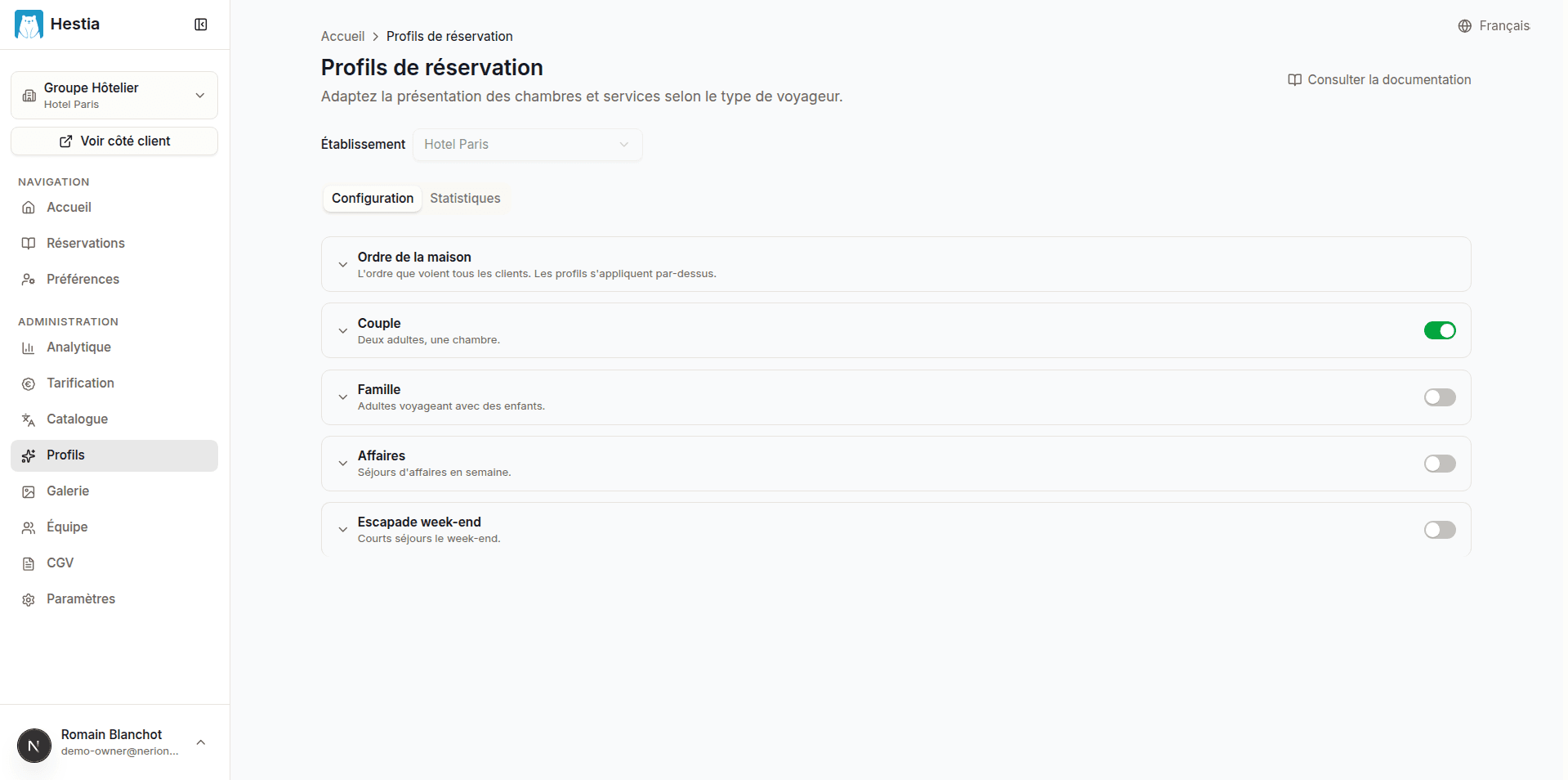
House order
The house order is your own display order. It applies to every guest, profile or not. Without it, rooms are listed cheapest first and services follow the PMS order.
Open the House order card at the top of the Configuration tab, then add and order rooms and services exactly as you would for a profile. Two differences: it is always applied (no switch), and it cannot rename anything, since renaming stays specific to a profile.
Profiles apply on top of this order: a profile only lifts what it promotes, and everything else keeps the house order. You never have to re-order your catalog inside each profile.
The Phase-1 profiles
| Profile | Matches |
|---|---|
| Couple | Two adults, one room |
| Family | Adults travelling with children |
| Business | Weekday business stays |
| Weekend break | Short weekend stays |
Enabling a profile
Toggle a profile on to activate it for the selected property. A disabled profile is never applied.
Promoting rooms and services
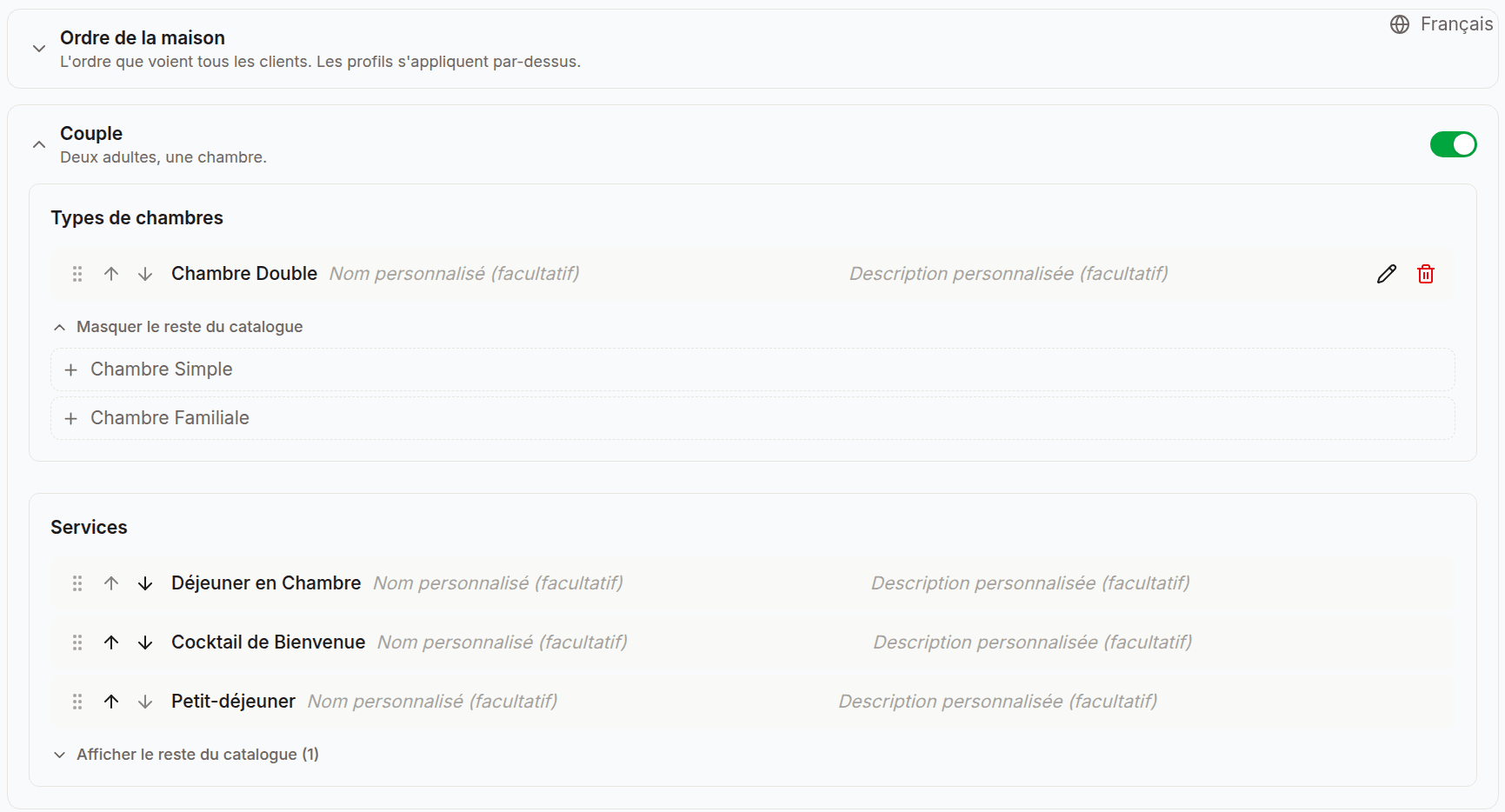
Open a profile’s editor to:
- Add room types or services from your catalog. Below the list, Show the rest of the catalog unfolds everything not promoted yet: one click on an entry moves it into the list. The panel stays open, so you can add several in a row.
- Reorder promoted items by dragging them with the handle on the left. On desktop the up and down arrows do the same. They appear in this order, before the rest.
- Relabel an item with a custom name and description, in every site language. Leave a field empty to keep the original text.
- Remove an item with the bin icon on its row.
You can set all of this up on a profile that is not live. Your settings are saved and take effect the day you switch it on.
Rate plans and the base rate
Each room shows several rate plans (for example Standard, Flexible, Non refundable). The Rate plans section, in the house order and in every profile, orders them by their code and sets which one is the base rate.
The rate plan at the top of the list is the base, marked with a Base badge. Its price becomes the reference:
- The price calendar shows the base rate’s price per night instead of the cheapest rate.
- On each room card the base rate shows its full price, and every other plan shows its difference from it: a cheaper plan (for example Non refundable) as a discount, a dearer one (for example Flexible above Standard) as a supplement.
As with rooms and services, the house order sets the baseline every guest gets, and a matched profile can reorder the rate plans on top of it. When you set no rate-plan order, the calendar keeps showing the cheapest rate and the cards measure against it.