Discover the interface
Overall structure
The Hestia Reservation interface has two main parts:
- The sidebar (on the left): navigation between sections
- The main area (in the center): content of the active page
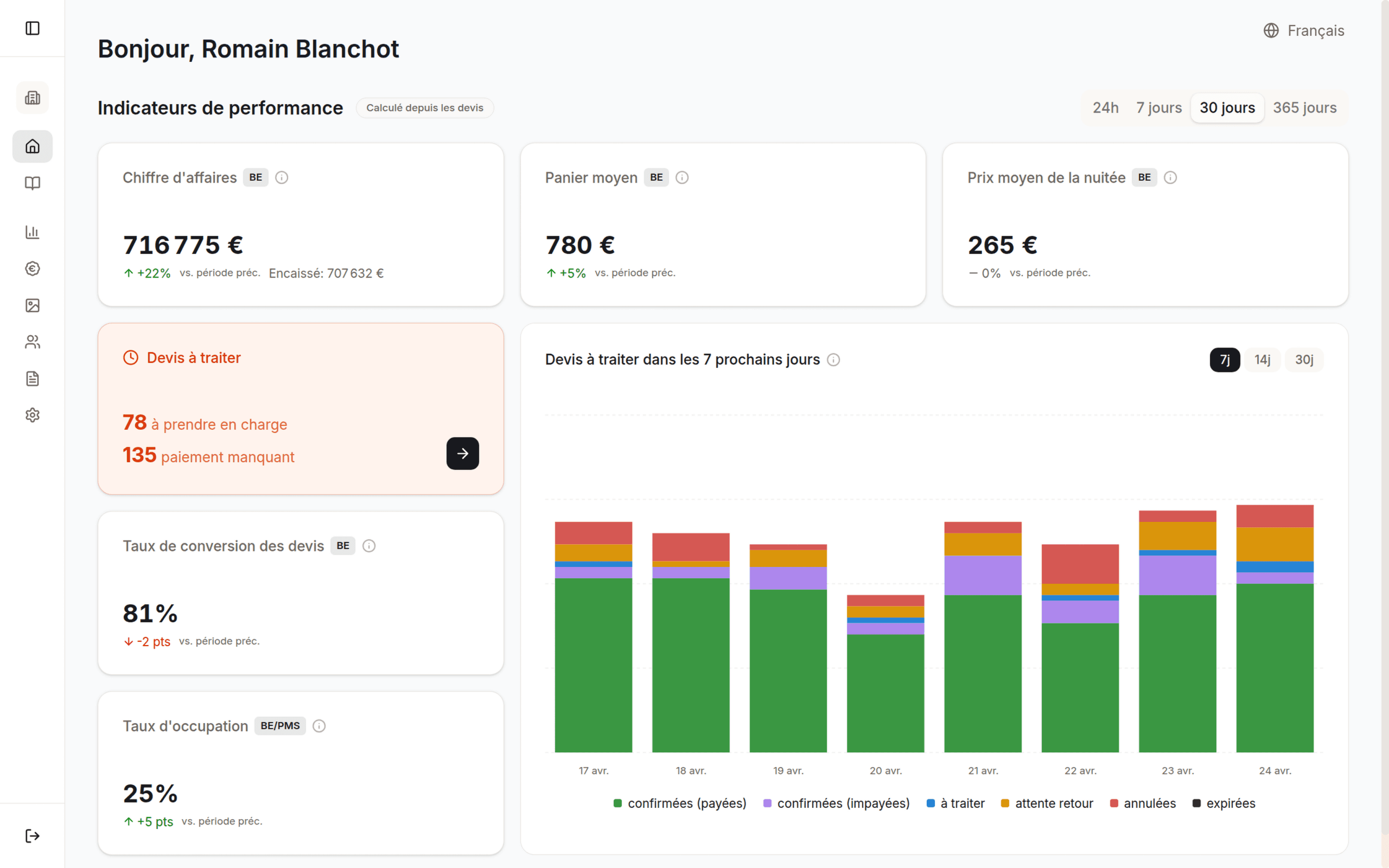
In this screenshot:
- Sidebar with the navigation sections
- Main area showing the content of the active page
- Role indicator and name of the signed-in user (at the bottom of the sidebar)
Sidebar
The sidebar gives access to the main sections. The visible sections depend on your role:
All roles:
| Section | Description |
|---|---|
| Home | Dashboard with key metrics |
| Bookings | Booking list and management |
| Preferences | Personal notification preferences |
Manager and Owner:
| Section | Description |
|---|---|
| Pricing | Rate plans and options |
| Gallery | Property image management |
| Team | Member management |
Manager and Owner:
| Section | Description |
|---|---|
| Analytics | Detailed statistics |
Owner only:
| Section | Description |
|---|---|
| T&Cs | Terms and conditions |
| Settings | Property configuration |
The sidebar is collapsible. Click the menu icon to collapse or expand it.
Hotel selector
At the top of the sidebar, the workspace selector lets you:
- Switch organization: if you manage several properties, select the one you want to work on
- Filter by property: if your organization has several hotels, choose a property to see only its bookings, KPIs, and images. Select “All properties” to return to the full view
The property filter applies to every page: dashboard, bookings, analytics.
Mobile navigation
On mobile, the sidebar is replaced by a tab bar at the bottom of the screen:
| Tab | Visible to |
|---|---|
| Home | Everyone |
| Bookings | Everyone |
| Analytics | Owner and Manager |
| More | Everyone (opens the full menu) |
Tap More to access the other sections (gallery, pricing, team, settings, and so on).
Role indicator
Your role is shown under your name in the sidebar:
- Owner: full access
- Manager: extended access (without advanced settings)
- Receptionist: access to bookings only
Last updated on