Confirm a booking
Confirmation validates the booking and syncs it to your PMS (Apaleo). You can confirm with or without a reply from the customer.
Prerequisite
The booking must have the Awaiting response status.
Procedure
- Open the booking detail
- Click the Confirm button
- Check the stay summary (dates, rooms, guests, total amount)
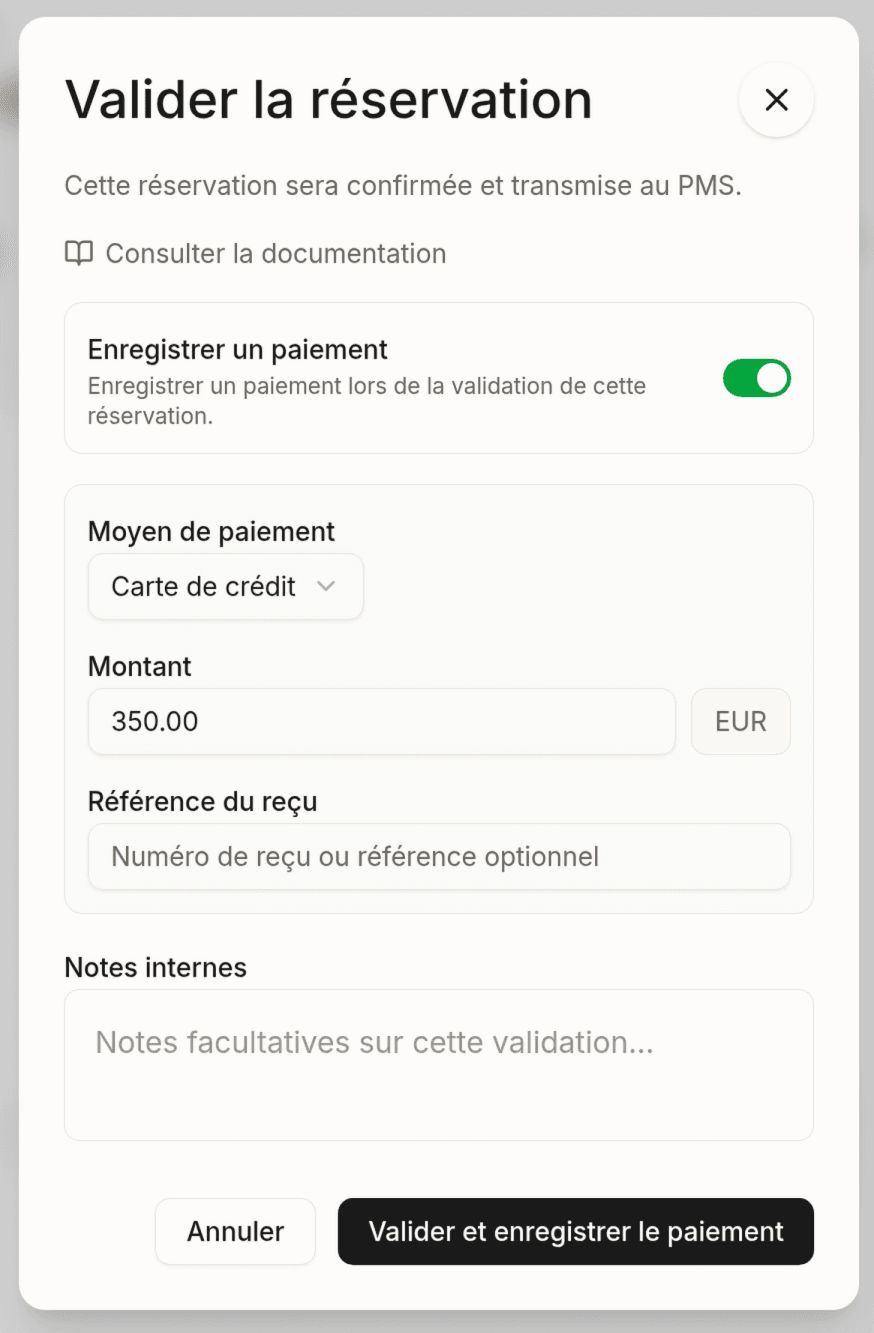
- (Optional) Record a payment at the same time:
- Tick Record a payment
- Select the payment method
- Enter the amount
- (Optional) Add an internal note
- Choose whether the customer should be notified:
- The Notify the customer toggle is on by default
- The message is prefilled in the customer’s language (editable, with a language selector)
- If disabled, only staff receive the notification
- Click Confirm the booking
Result
- The status changes to Confirmed
- The booking is sent to the PMS (created automatically in Apaleo)
- A PMS identifier is assigned
- The customer receives a confirmation email with the custom message (if notification is enabled)
- Staff receive a notification (always sent)
Force confirmation (overbooking)
If confirmation fails because the room is no longer available in the PMS, a Force confirmation button appears (owners and managers only).
This option creates the booking in Apaleo even if stock is exceeded (overbooking). Use it when you know a room will free up (planned cancellation, room change…).
This feature must be enabled in the property settings.
In case of a PMS error
If the sync fails:
- The booking stays in Awaiting response
- An error message is displayed
- You can retry after resolving the issue
- If the problem persists, contact our support team
Confirmation is irreversible in the PMS. To cancel afterwards, use the cancellation procedure.
Last updated on